· Updated · Dynamics NAV/365 BC · 7 min read
C/SIDE to AL Table Data Migration
In the last weeks I’ve read a few posts about C/SIDE to AL Data Migration and as far as I understand people are struggling to have data migrated from C /SIDE to AL tables.
Data upgrade codeunits to the rescue. They exist in C/AL and exists in AL as well so you should use and abuse them.
If you ever made a data upgrade then you should be familiar with upgrade codeunits but if you don’t, please feel free to ask me for help.
Let’s take a look at the following scenario:
I have two tables in C/AL with dummy data and I want to convert them to extensions. I need to migrate the data from the C /AL table to the new AL table.
* Table 50000 - Dummy Data To Migrate
* Table 50001 - Dummy Data To Migrate 2
In table 50000 the field ids are the same. In table 50001 the ids don’t match the final table ids but the fields name do so both scenarios are very similar. I’ll show you how to handle it.
Please consider the following steps:
- Create two C/AL tables and populate them with dummy data.

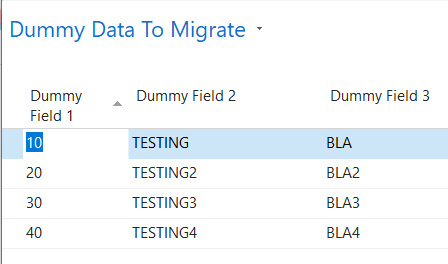
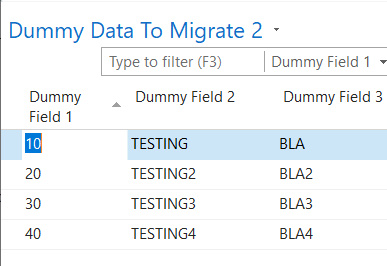
- The new AL tables will have the same table id and/or the same name so we need to create new tables to temporarily hold the data and use data migration codeunits to migrate the data from the original to the upgrade (temp) tables.
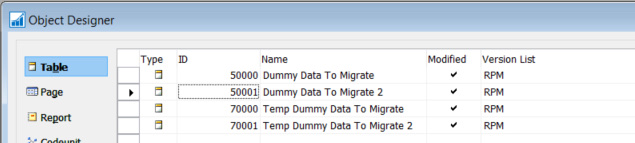
New 70000 and 70001 tables are copies of the original ones.
- Create a new upgrade codeunit to move the data from the original tables to the upgrade (temp) tables:

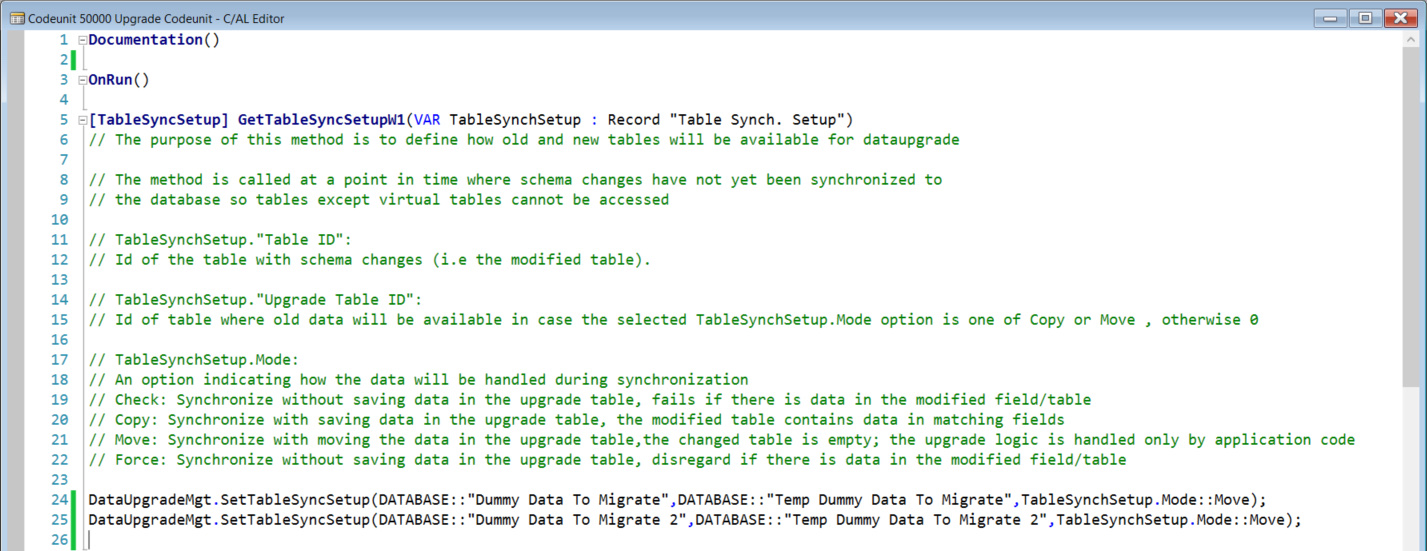
[TableSyncSetup] GetTableSyncSetupW1(VAR TableSynchSetup : Record “Table Synch. Setup”)
// The purpose of this method is to define how old and new tables will be available for dataupgrade// The method is called at a point in time where schema changes have not yet been synchronized to
// the database so tables except virtual tables cannot be accessed// TableSynchSetup.”Table ID”:
// Id of the table with schema changes (i.e the modified table).// TableSynchSetup.”Upgrade Table ID”:
// Id of table where old data will be available in case the selected TableSynchSetup.Mode option is one of Copy or Move , otherwise 0// TableSynchSetup.Mode:
// An option indicating how the data will be handled during synchronization
// Check: Synchronize without saving data in the upgrade table, fails if there is data in the modified field/table
// Copy: Synchronize with saving data in the upgrade table, the modified table contains data in matching fields
// Move: Synchronize with moving the data in the upgrade table,the changed table is empty; the upgrade logic is handled only by application code
// Force: Synchronize without saving data in the upgrade table, disregard if there is data in the modified field/tableDataUpgradeMgt.SetTableSyncSetup(DATABASE::“Dummy Data To Migrate”,DATABASE::“Temp Dummy Data To Migrate”,TableSynchSetup.Mode::Move);
DataUpgradeMgt.SetTableSyncSetup(DATABASE::“Dummy Data To Migrate 2”,DATABASE::“Temp Dummy Data To Migrate 2”,TableSynchSetup.Mode::Move);
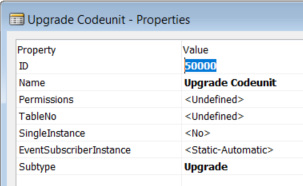
Codeunit subtype must be set to Upgrade.
At this moment, you will be able to delete the original tables without forcing it because a data upgrade codeunit has been created to handle and move the data.
Delete tables 50000 and 50001 and choose “Now - with validation” option;
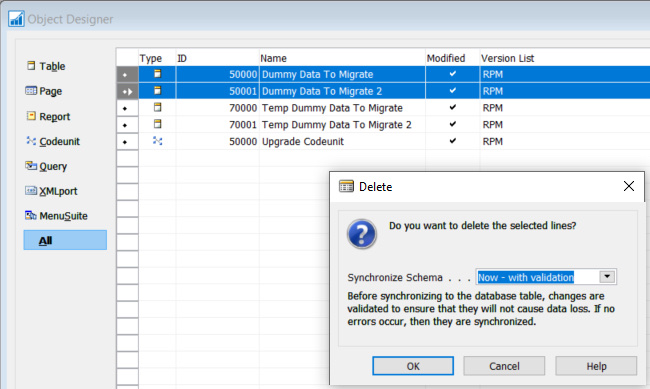
- The tables are deleted without any issue;
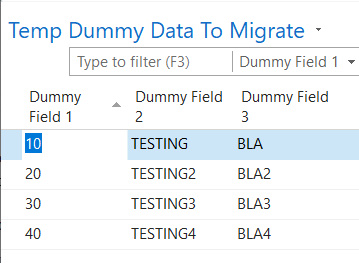
- Run the temporary tables and check that the data has been copied from the original to the temporary tables;
- Now create the AL extension with the two original tables. For the sake of simplicity I’ve created the following tables in AL:
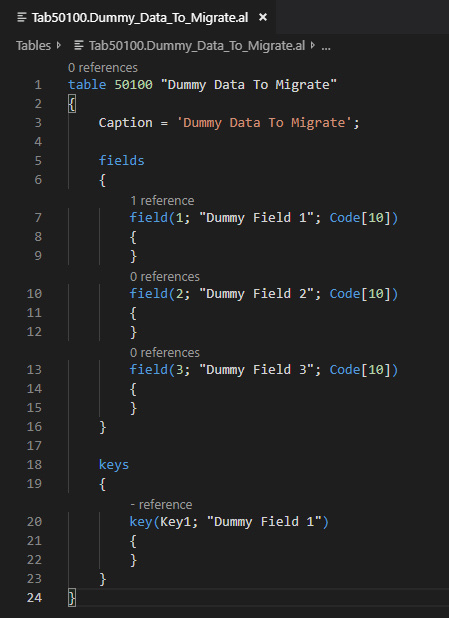
table 50100 "Dummy Data To Migrate"
{
    Caption = 'Dummy Data To Migrate';

    fields
    {
        field(1; "Dummy Field 1"; Code[10])
        {
        }
        field(2; "Dummy Field 2"; Code[10])
        {
        }
        field(3; "Dummy Field 3"; Code[10])
        {
        }
    }
    keys
    {
        key(Key1; "Dummy Field 1")
        {
        }
    }
}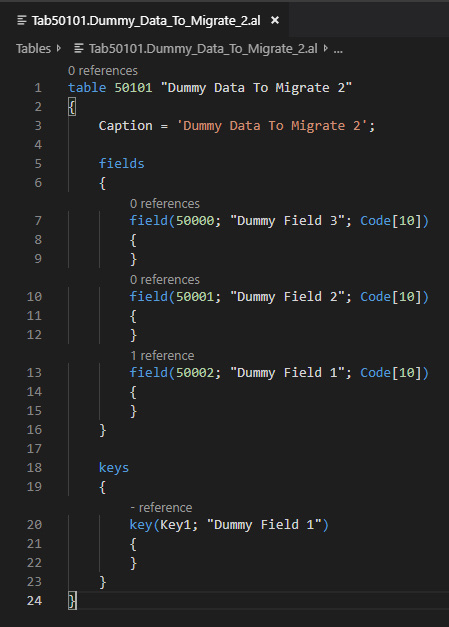
table 50101 "Dummy Data To Migrate 2"
{
    Caption = 'Dummy Data To Migrate 2';
    fields
    {
        field(50000; "Dummy Field 3"; Code[10])
        {
        }
        field(50001; "Dummy Field 2"; Code[10])
        {
        }
        field(50002; "Dummy Field 1"; Code[10])
        {
        }
    }
    keys
    {
        key(Key1; "Dummy Field 1")
        {
        }
    }
}
Please note that in “Dummy Data To Migrate 2” table the field ids are not equal and are sorted differently.
- Publish the extension;
- To migrate the data from the temporary tables to the extension tables, create a data upgrade codeunit in AL:
codeunit 50100 "Data Upgrade Codeunit"
{
    Subtype = Upgrade;

    trigger OnRun()
    begin
    end;

    trigger OnUpgradePerCompany()
    begin
        DummyTable1_DataCopy();
        DummyTable2_DataCopy();
    end;

    local procedure DummyTable1_DataCopy()
    var
        DestinyTable: Record "Dummy Data To Migrate";
        OriginTable: Record "Temp Dummy Data To Migrate";
    begin
        if OriginTable.FindSet() then
            repeat
                DestinyTable.Init();
                DestinyTable.TransferFields(OriginTable);
                DestinyTable.Insert();
            until OriginTable.Next() = 0;
        // OriginTable.DeleteAll();
    end;

    local procedure DummyTable2_DataCopy()
    var
        DestinyTable: Record "Dummy Data To Migrate 2";
        OriginTable: Record "Temp Dummy Data To Migrate 2";
    begin
        if OriginTable.FindSet() then
            repeat
                DestinyTable.Init();
                DestinyTable."Key Field 1" := OriginTable."Key Field 1"; // Add all the key fields.
                DestinyTable."Dummy Field 1" := OriginTable."Dummy Field 1";
                DestinyTable."Dummy Field 2" := OriginTable."Dummy Field 2";
                DestinyTable."Dummy Field 3" := OriginTable."Dummy Field 3";
                DestinyTable.Insert();
            until OriginTable.Next() = 0;
        // OriginTable.DeleteAll();
    end;
}
i. Two issues should arise:
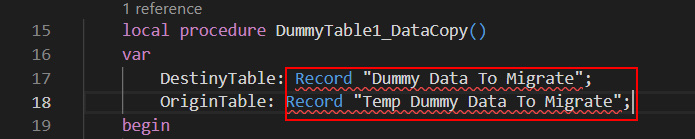
- VSCode cannot find “Dummy Data To Migrate” nor “Dummy Data To Migrate 2” tables.
To fix this, you must set dependencies with the extension created earlier.
In the app.json, setup the dependencies:
"dependencies": [
   {
      "appId": "6fbcc681-a68a-46bc-ab7c-87c7434fdd06",
      "name": "DataMigrationArticle",
      "publisher": "Default publisher",
      "version": "1.0.0.0"
   }
],- VSCode cannot find “Temp Dummy Data To Migrate”.
This is related with the symbols generation because this table was created in C/AL and must be accessed in AL. Please refer to the following website:
You need to run the Microsoft Dynamics NAV Development Environment with the generatesymbolreference flag set as true and compile both 70000 and 70001 tables.
finsql.exe generatesymbolreference=yes
Please let me know if you have any doubts.
- Download the symbols again in VS Code after following the previous steps and you should have no errors in the project.
- Publish the upgrade extension and install it.
I’ve packaged the extension in VSCode and used Powershell to publish and install it but you can do it directly from VSCode if you want it.
To do it in Powershell run the commands below.
Don’t forget to update the path, server instance and file names to match yours.
Import-Module "C:\\Program Files\\Microsoft Dynamics 365 Business Central\\130\\Service\\NavAdminTool.ps1" –force
Publish-NAVApp -ServerInstance W1\_NAVBC\_CU5 -Path "C:\\...\\AL\\DataMigrationArticleUpgradeCodeunit\\Default publisher\_DataMigrationArticleUpgradeCodeunit\_1.0.0.0.app" -SkipVerification
Sync-NAVApp -ServerInstance W1\_NAVBC\_CU5 -Name DataMigrationArticleUpgradeCodeunit
Install-NAVApp -ServerInstance W1\_NAVBC\_CU5 -Name DataMigrationArticleUpgradeCodeunit- Next, uninstall the extension and publish it a higher version extension;
Uninstall-NAVApp -ServerInstance W1\_NAVBC\_CU5 -Name DataMigrationArticleUpgradeCodeunit
Publish-NAVApp -ServerInstance W1\_NAVBC\_CU5 -Path "C:\\...\\AL\\DataMigrationArticleUpgradeCodeunit\\Default publisher\_DataMigrationArticleUpgradeCodeunit\_2.0.0.0.app" -SkipVerification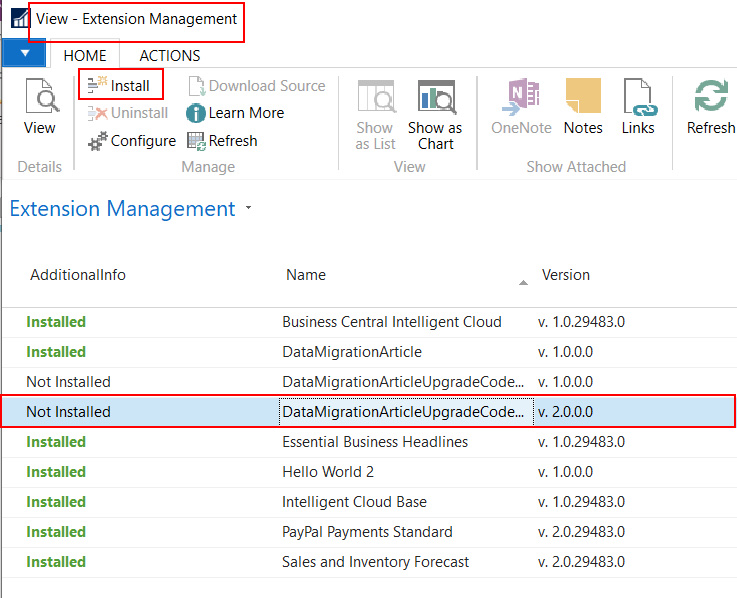
At this moment the upgrade codeunit is executed and data is migrated;
- To check if data was migrated you can use a SQL query:
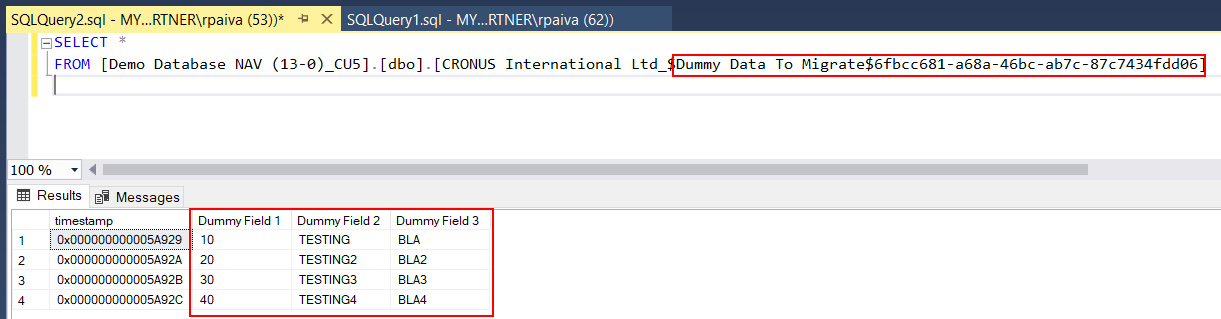
Et voilá, the data is migrated ;)
- You can now uninstall and unpublish the data upgrade extension and delete tables 70000 and 70001 in C/SIDE.
Feel free to leave your comments or ask me questions.