· Dynamics NAV/365 BC · 1 min read
Powershell - How to install the certificate automatically after creating the container
When a new container is created using navcontainerhelper, if the -useSSL flag is used, a self-signed certificate is created and the url to the certificate file is retrieved.
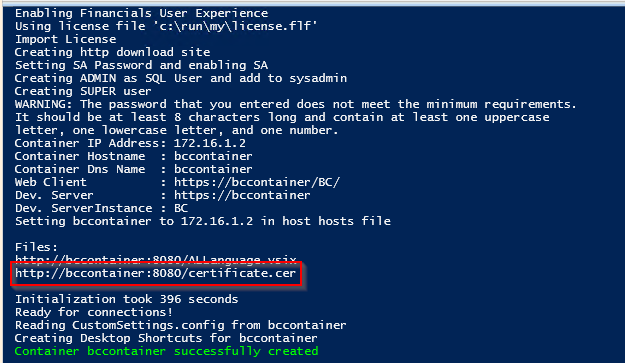
How to download and install the self-signed certificate after creating the container, using Powershell commands?
Like this:
$containername = 'bccontainer'

$outputCertFilePath = 'C:\Temp\' + $containername + '_Certificate.cer'


# Download the certificate from container

$url = 'http://' + $containername + ':8080/certificate.cer'

Invoke-WebRequest -Uri $url -OutFile $outputCertFilePath


# Import downloaded certificate to trusted root

Import-Certificate -FilePath $outputCertFilePath -CertStoreLocation 'Cert:\LocalMachine\Root' -Verbose
Now the browser can be closed, if opened, and opened again. The certificate is installed and the browser won’t complain about it.
Please feel free to leave your comments.