· Updated · Dynamics NAV/365 BC · 4 min read
Business Central Telemetry - Giving permissions to external user to access telemetry data
Today’s post is about telemetry.
To start using telemetry in Business Central, this is the place to go: https://aka.ms/bctelemetrysamples
Basically what you need is:
- Have an Azure account
- Create a Application Insights application to receive the telemetry data
- Setup your Application Insights connection string in the Business Central Admin Center
Once you have done this, telemetry data will start flowing from the Business Central environment to Application Insights.
Unfortunately you can only setup one Application Insights connection string on each environment.
If you think it would be great to setup multiple Application Insights in the same environment, you can vote here:
In this post I’m going to show how it is possible to give access to an user that belongs to a different Azure Active Directory (AAD). If you, as a customer or as partner, have an Application Insights key configured in your BC environment, you can give access to external users to the telemetry data.
Please note that I will focus on giving permissions to the Application Insights resources but this applies to any other Azure resource.
1. Giving permissions to a third-party to access your own Application Insights app
1.1 Creating a group
Although you can give direct permissions to a specific user to access the Application Insights resource, I recommend that you create a specific group, give it the proper permissions and just add the users you need to give access to as members of this group.
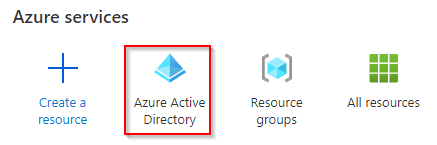
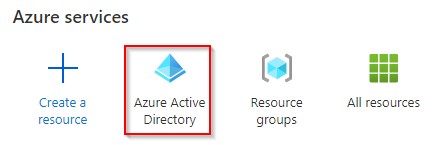
Access the Azure Active Directory resource
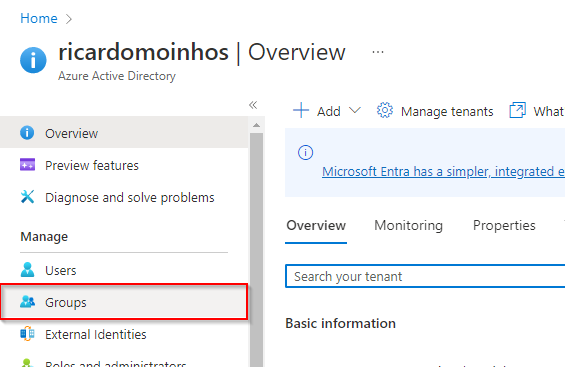
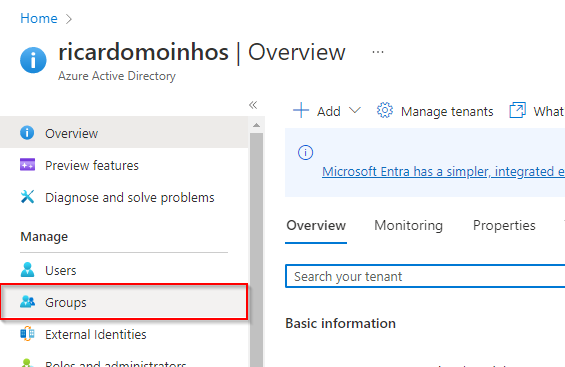
Access the Groups option on the left panel
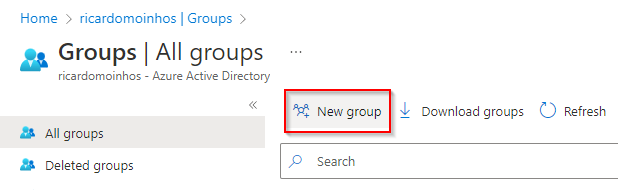
Click on New group
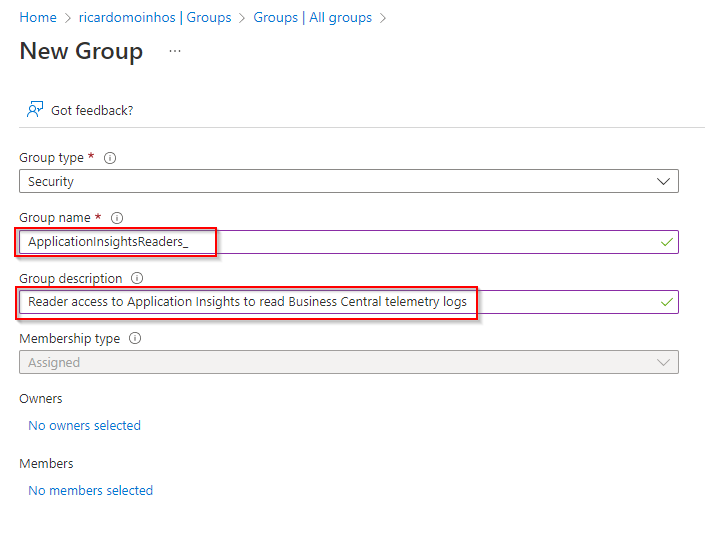
Give it a name and description
Press the Create button
Screenshots

1.2 Assigning the proper permissions to the new group
To assign the proper permissions to the group follow these steps:
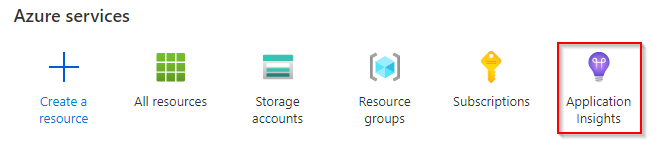
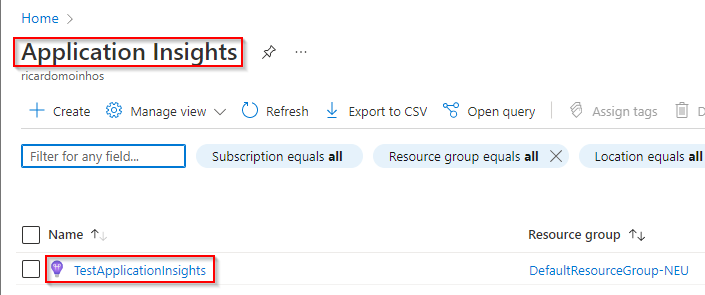
Access the Application Insights resource
Select the Application Insights resource you want to give access to
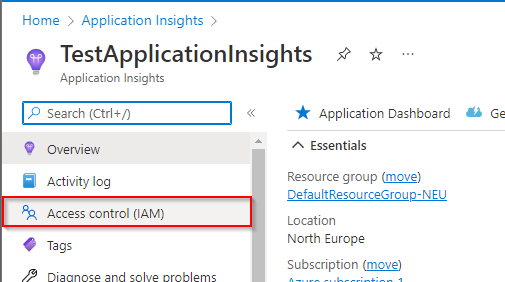
Click on Access control (IAM) in the left side panel
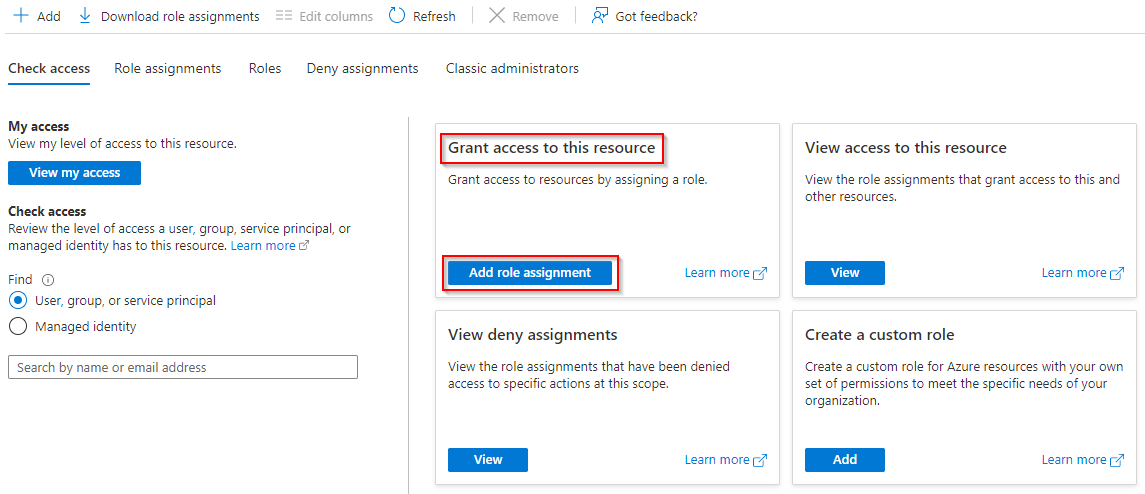
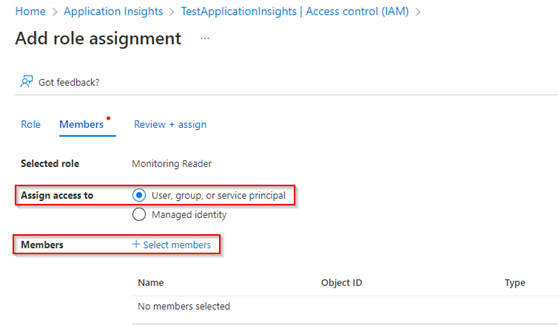
Click on Add role assignment, under Grant access to this resource
Select the Monitoring Reader role
Click on Next
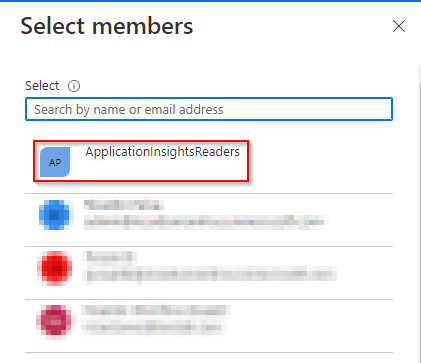
Assign this role to the group created previously by clicking on Select members
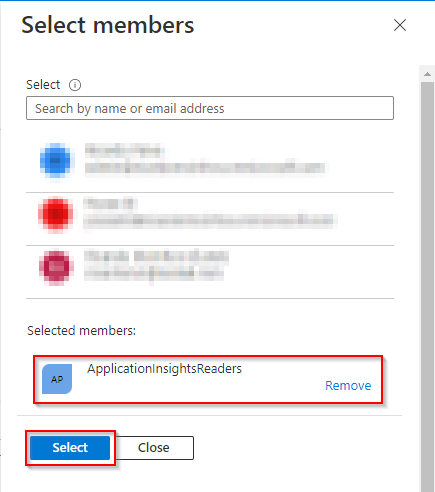
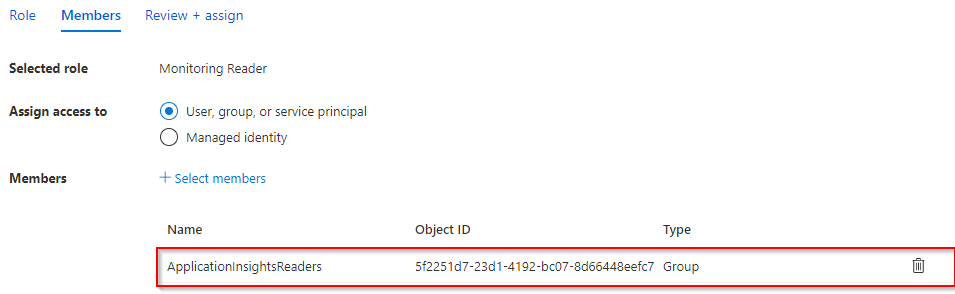
Select the group created previously and press Select
Click on Review + assign twice
Screenshots



1.3 Inviting and adding an user as an external user
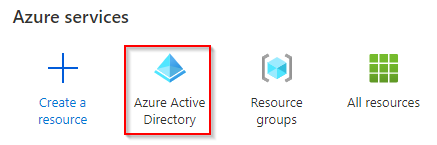
- Access the Azure Active Directory resource
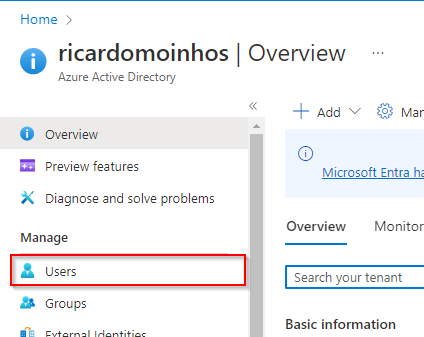
- Access the Users option on the left panel
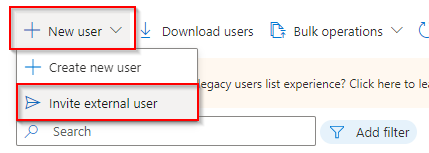
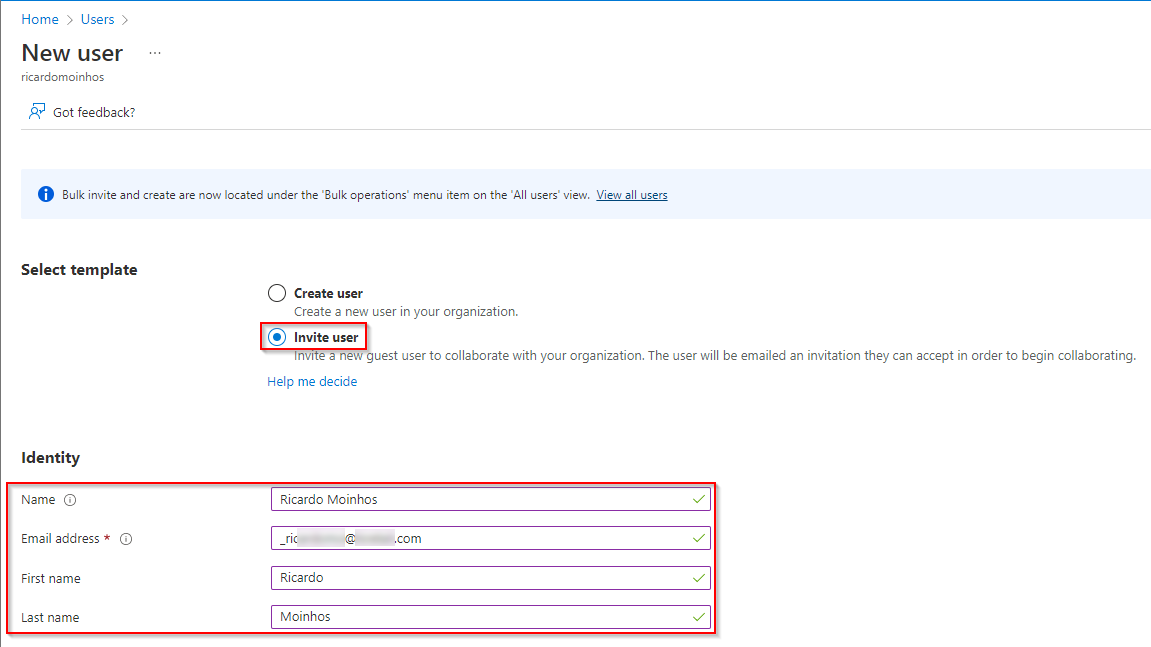
- Click on Create new user and Invite external user
- Select the Invite user option and add Identify information
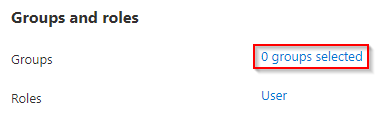
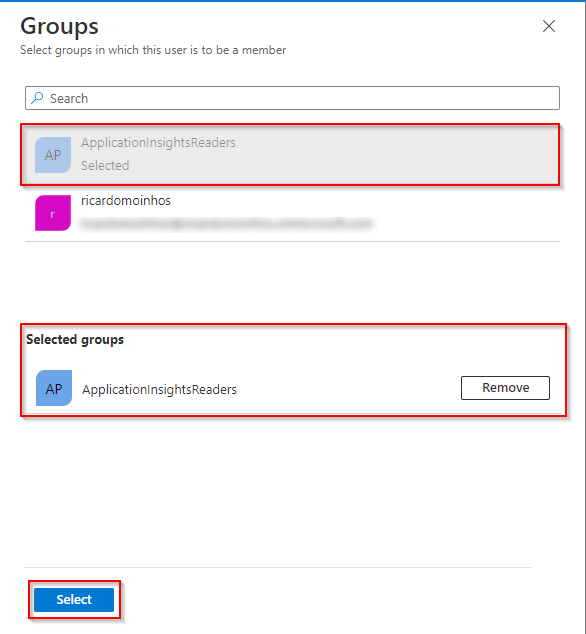
- Click on 0 groups selected
- Assign this user to the previously created group
- Click on Invite
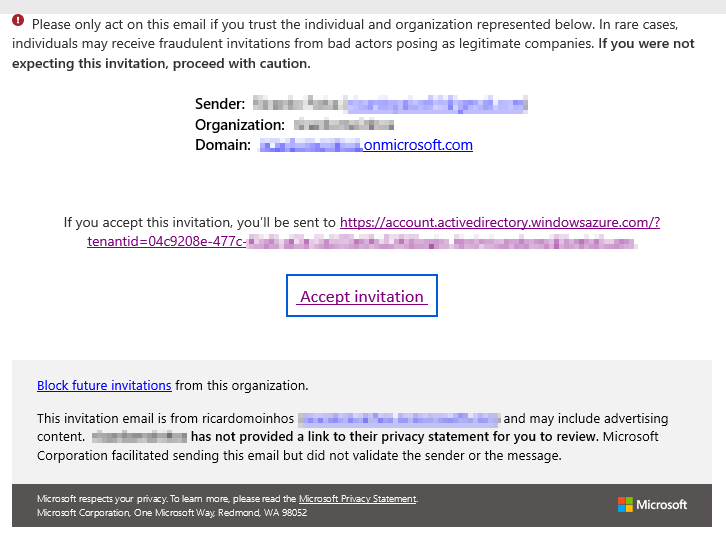
- An email similar to this will be sent:
Screenshots

1.4 Accessing the Application Insights in the customer’s tenant
The user must accept the invitation by clicking on Accept invitation on the received email.
After accepting the invitation, the user should log out and log in again into the Azure Portal.
After logging in, click on the Profile button and select Switch directory.
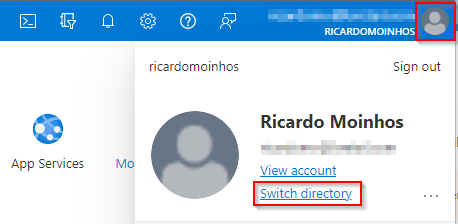
You can switch between directories (tenants) clicking on the Switch button.
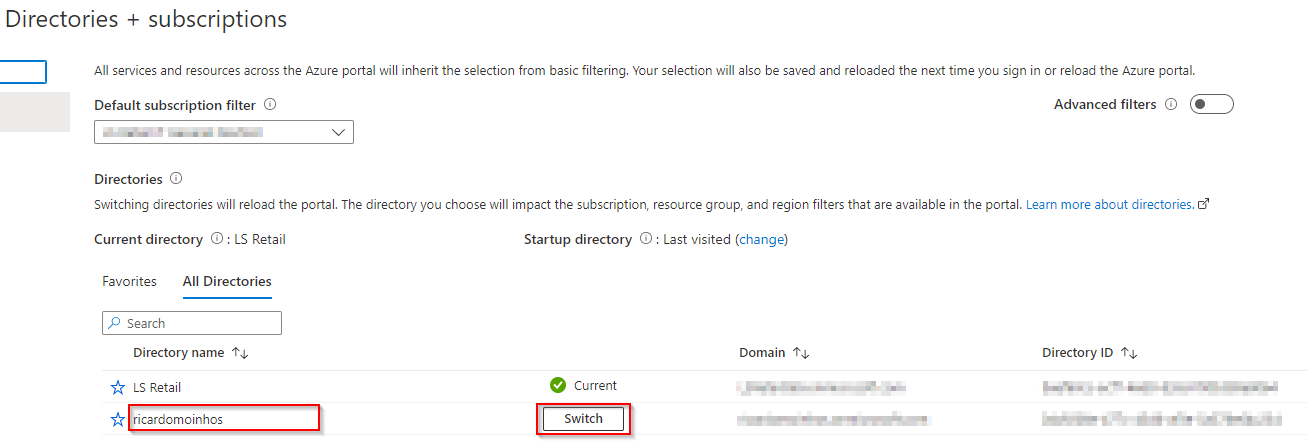
User should be able to access the Application Insights app in the customer’s tenant.
2. Revoking permissions to access Application Insights app
· Access the Azure Active Directory resource
· Access the Groups option on the left panel
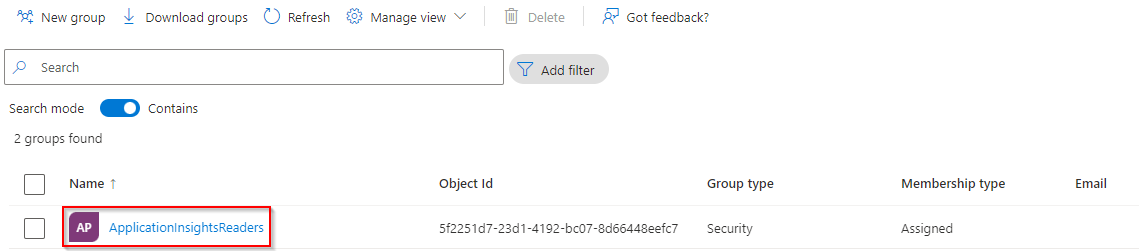
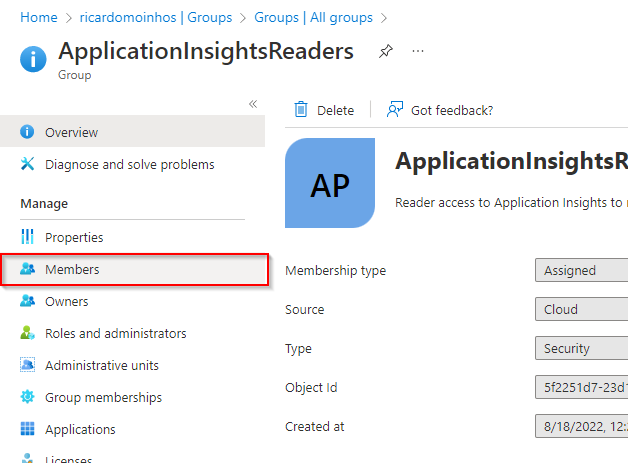
· Click on the ApplicationInsightsReaders (or whatever name was set) group
· Click on Members
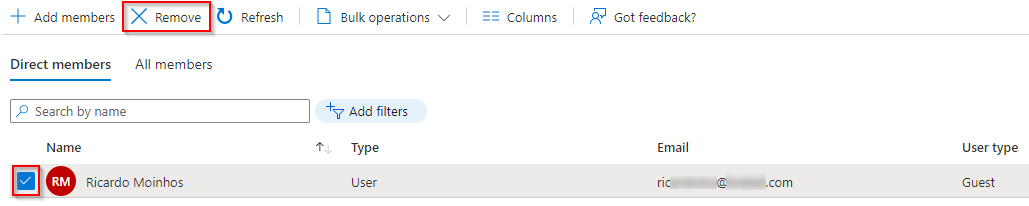
· Select the user to be removed and click on Remove
If needed, you can remove the user from the Users list, as well.
Please note that the user might only lose access to Application Insighs once he logs out and logs in again to the Azure Portal.
Screenshots
I hope you enjoyed this article and found it useful.
What are you thoughts on this? How are you sharing telemetry data?
Please feel free to comment.